Name Picker — Spin the Wheel to Pick a Random Name
1. What is the Name Picker?
The Name Picker is a free online spinning wheel that chooses one random name from any list you provide. Enter names, click Spin, and the wheel animates before landing on a selected entry. The process is visible, simple, and easy to explain to a class, audience, or team.
Use it when you need a random name picker, random name selector, or name picker wheel for classroom activities, contest giveaways, speaker order, task assignment, raffle drawings, or quick decisions. If you want the underlying selection method explained in plain language, read how PickerKit randomness works.
Common name picker workflows
- Teacher guide: call on students fairly and avoid predictable patterns.
- Giveaway guide: prepare entrants, run a visible draw, and handle no-repeat winners.
- Tool comparison: decide when to use Name Picker instead of Number Picker, Team Picker, or Yes/No Picker.
Best for / Not best for
- Best for: student selection, giveaway entrants, speaker order, volunteer picks, and task assignment.
- Not best for: numeric ticket ranges or balanced multi-team grouping. Use Number Picker or Team Picker for those.
2. How to Use the Name Picker
The Name Picker is designed to be intuitive. Most users can start spinning within seconds, but here is a detailed walkthrough of every step:
- Open the Name Picker. Navigate to this page. The wheel and input panel load automatically — no sign-up, no downloads, no installation required.
- Add your names. Use the input panel on the side of the wheel. You can type names one at a time, paste a list from a spreadsheet, or use quick-add presets. Each name appears as a segment on the wheel in real time. Use Quick Presets to quickly add common names, family members, or friends.
- Edit your list (optional). Add or remove names, or duplicate entries if someone should have multiple chances. Changes reflect instantly on the wheel.
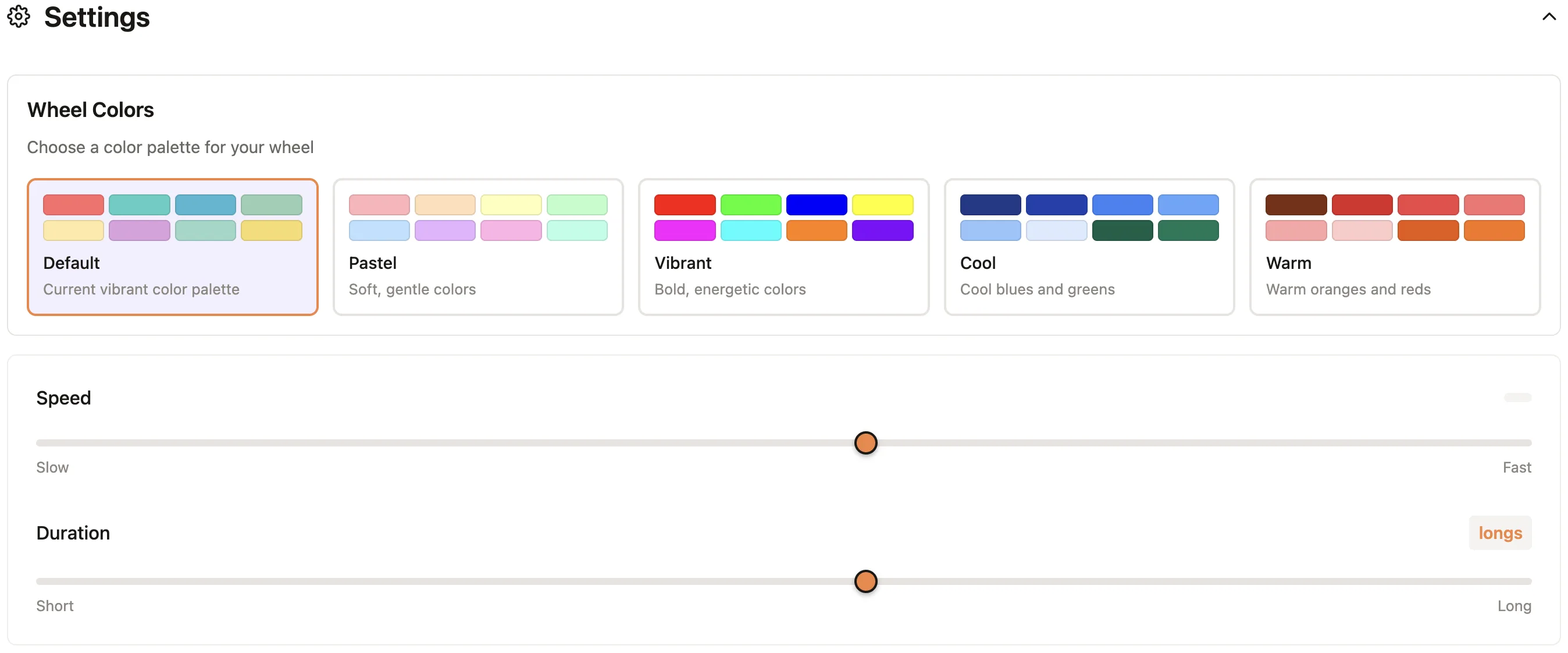
- Adjust settings (optional). Open the settings panel to choose a short or long spin and switch color themes.
- Spin the wheel. Click the Spin button in the center of the wheel (or press the Space or Enter/Return keys on your keyboard). The wheel spins with realistic physics and slows to a stop. The pointer indicates the winning name.
- View and act on the result. A result popup announces the winner. From here you can copy the name to clipboard, remove it from the wheel for the next spin, or dismiss and spin again.
That is all it takes. For recurring use, you can bookmark your configured wheel or share the link with others.
3. Adding Names: All the Ways
The Name Picker supports multiple ways to populate your wheel, so you can use whichever method fits your workflow:
Type names one by one
Click the input field in the inputs panel, type a name, and press Enter or click the "+" button. Repeat for each name. This method works well for short lists or when you are building a wheel on the fly.
Paste a List of Names
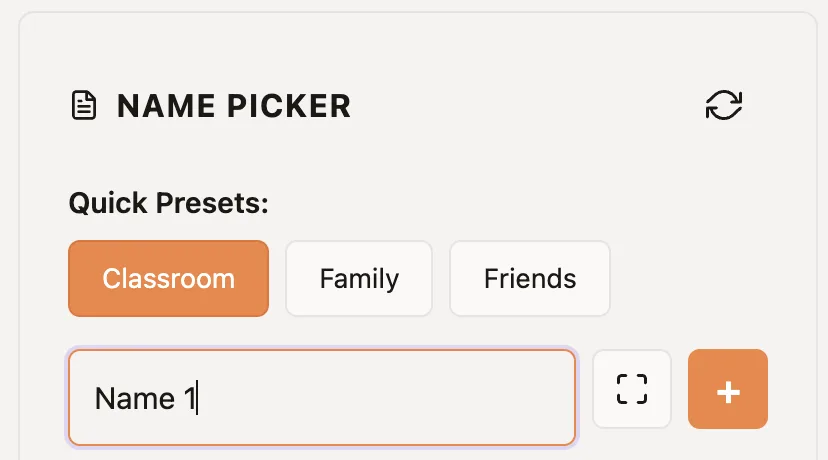
Copy a list of names from a text file, a column of names from Excel, Google Sheets, or any other spreadsheet application. Click the Expand to multi-line button and paste names. Then click the "+" button. The tool automatically splits each line into a separate entry and adds them to the wheel. This is the fastest way to import long lists like class rosters, attendee lists, or contestant databases.
Edit after adding
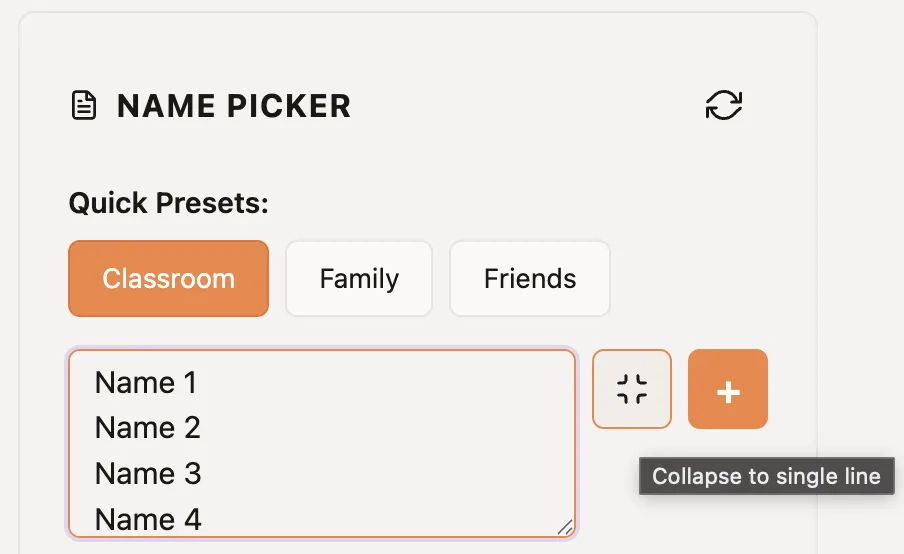
Once names are on the wheel, you can still modify them. Drag entries to reorder them using the drag handles (⋮⋮ pattern) on their left. Use the "X" (delete) buttons to remove entries. All changes appear on the wheel immediately.
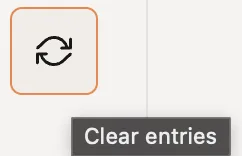
You can clear all entries by clicking the Clear entries button.
4. Wheel Settings
The Name Picker works out of the box with sensible defaults, but the settings panel lets you tailor the experience for different contexts — from quick classroom picks to dramatic live-streamed giveaways.
Spin behavior
- Spin duration: Choose a short three-second spin or a longer five-second spin.
Colors and themes
Switch between color palettes to match your brand, classroom theme, or stream overlay. Each theme changes the segment colors on the wheel while keeping text legible.
5. Pick Random Names Without Repeats
For a no-repeat round, add each person once and click Remove after every result. Removal is manual, not automatic: closing the result without removing the winner leaves that entry eligible for the next spin.
- Check your list for duplicate entries before the first spin. Use distinct labels for people who share a name, such as Alex R. and Alex S.
- Spin, record the selected person, then click Remove in the result popup.
- Repeat with the remaining entries. Start a new round by adding your original list again.
Removing a winner removes that entry, not every matching name. If the same person appears twice, their other entry can still win. For a classroom round, see the guide to randomly calling on students fairly; for multiple prizes, use the giveaway draw checklist.
Normal Mode
The wheel picks a name and that name stays on the wheel for subsequent spins. This is useful when:
- The same person can be selected multiple times (for example, picking who answers the next question in class — repeats are okay).
- You want to spin multiple times and compare results without modifying the list.
- You are running an informal decision-maker where persistence does not matter.
Removing a winner
After a spin, click Remove in the result popup to take the winner off the wheel before the next spin. 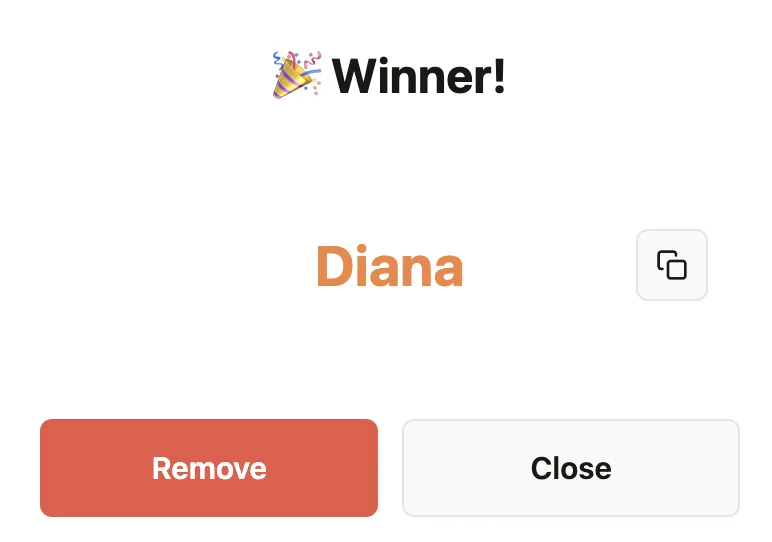 This is useful when:
- Running a raffle or giveaway where each person can only win once.
- Assigning tasks to team members without repeating anyone until the list is exhausted.
- Calling on students one by one without repeating names during a class session.
- Forming groups by removing each person as they are assigned.
6. Saving and Sharing Your Wheel
You do not need an account to save and share your Name Picker configuration. Saving is free and available to every user.
How saving works
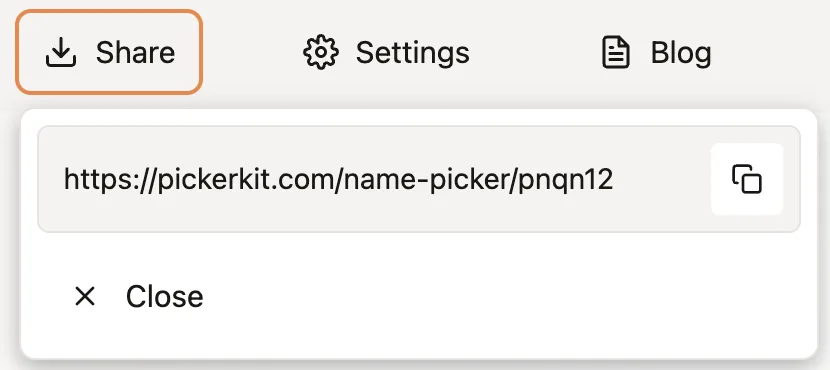
Add names and adjust the wheel, then click Share in the top menu. PickerKit creates a link containing the configuration in the URL fragment; click the copy button to copy it.
Sharing with others
Copy the URL and send it to colleagues, students, or your audience. When they open the link, they see the same wheel with the same names — ready to spin. (Note: their operations will not change your wheel configuration. It will remain constant and you can always refer to it.) This is perfect for:
- Teachers sharing a class roster wheel with substitute teachers.
- Event organizers distributing a giveaway wheel to co-hosts.
- Team leads sharing a task-assignment wheel with remote team members.
Organizing multiple wheels
Create separate configurations for different purposes (one wheel per class, one per campaign, one per team). Save each URL as a bookmark. Organize them in browser folders for quick access — for example, a "Class Rosters" folder or a "Giveaway Wheels" folder.
7. Use Case: Classroom and Teaching
A classroom name picker helps teachers call on students without relying on volunteers, seating order, or memory. It is useful for quick participation checks, warm-up questions, presentation order, classroom games, and role assignment.
Random student selection
Instead of picking volunteers (which favors outgoing students) or going down the roster (which is predictable), spin the wheel. Every student has an equal chance of being called. This keeps everyone engaged because they never know when their name will come up.
Assigning roles and tasks
Decide who presents first, who leads the discussion, or who takes notes. The wheel removes the decision from the teacher's hands, which students perceive as fairer.
Icebreakers and games
Use the wheel for classroom games: who answers the trivia question, who picks the next activity, or who shares their weekend story. The randomness adds an element of fun and anticipation.
Substitute teacher handoff
Save your class roster as a bookmarked wheel and share the link with substitute teachers. They can use the same fair selection method without needing to learn a new system.
For a fuller classroom workflow, read how teachers can randomly call on students fairly. If you need groups instead of one selected student, use the Team Picker or the team-splitting guide.
8. Use Case: Giveaways and Raffles
A giveaway name picker works best when the entrant list is clean, the draw is visible, and the winner-removal rule is clear before you start. The spinning wheel gives the audience a simple way to follow the selection.
Setting up a giveaway wheel
- Collect participant names (from comments, sign-ups, or ticket sales).
- Paste the names into the Name Picker.
- Click Remove in the winner dialog if each person can only win once.
Running the drawing live
Screen-share the wheel during a live stream, webinar, or in-person event. Click Spin and let your audience watch the wheel slow down and land on a winner. The visible draw makes the process easier to follow.
Multiple prizes
For giveaways with multiple prizes, click Remove after each winner, then spin again. This ensures each person wins at most one prize.
For a step-by-step giveaway process, read how to run a transparent giveaway wheel. If your entries are ticket numbers, order numbers, or numbered receipts, use the Number Picker instead.
9. Use Case: Team and Workplace
Workplaces use the Name Picker to make fair, unbiased decisions that remove politics from everyday choices.
Task assignment
When no one volunteers for an unpleasant task, let the wheel decide. Spin to assign who handles the on-call shift, who writes the meeting notes, or who reviews the pull request. Random assignment feels fairer than a manager picking someone.
Meeting roles
Rotate meeting facilitator, timekeeper, or note-taker roles by spinning the wheel at the start of each meeting. This distributes responsibility evenly and gives everyone practice in different roles.
Icebreakers for remote teams
During virtual team meetings, use the wheel to pick who shares a fun fact, who answers the icebreaker question, or who goes first in a round-robin update. It adds a light moment to otherwise routine meetings.
Secret Santa and gift exchanges
Enter team member names and remove each selected person before the next spin to avoid repeats.
Decision-making tiebreakers
When the team is split between two options, put both on the wheel and spin. Sometimes leaving a minor decision to chance is faster than debating further.
10. Tips and Best Practices
Get the most out of the Name Picker with these practical tips:
- Keep lists under 50 names for readability. The wheel can handle hundreds of names, but segments become hard to read. For large lists, the wheel still works correctly — you just won't be able to see every name on the visual.
- Remove winners for no-repeat scenarios. After each spin, click Remove in the winner dialog before spinning again.
- Test your setup before going live. If you are running a public giveaway, do a practice spin to confirm the list, colors, and timing.
- Bookmark frequently used wheels. If you use the same class roster or team list repeatedly, save the URL as a bookmark for instant access.
- Share the link, not a screenshot. If you want others to use your wheel, send them the URL so they get an interactive, spinnable version.
12. Frequently Asked Questions
How does the Name Picker choose a result?
The Name Picker uses the browser Web Crypto API when available to generate unpredictable random values. Each active entry is treated evenly by the selection logic, so the wheel is suitable for everyday classroom picks, giveaways, and team decisions. For more detail, read how PickerKit randomness works.
Can I paste names from Excel or Google Sheets?
Yes. Copy a column of names from any spreadsheet application (Excel, Google Sheets, Numbers, etc.) and paste directly into the input field. The tool automatically splits each line into a separate wheel entry.
How do I remove winners so they are not picked again?
Click the Remove button in the result popup. The name will be removed from the wheel after the spin and will not be available for subsequent spins.
Is there a limit to how many names I can add?
There is no hard limit. The wheel can handle hundreds of names. However, for visual clarity, lists under 50 names work best — the segments become very thin with larger lists. The randomness remains fair regardless of list size.
Can I save my wheel and use it again later?
Yes. You can save your wheel configuration for saving and sharing purposes. When you open that link again, full configuration, including all your names and settings will be restored exactly as you left them.
Can I share my wheel with others?
Yes. Copy the saved URL and send it to anyone. They will see the same wheel with the same names and can spin it themselves. This is perfect for sharing class rosters with co-teachers or giveaway wheels with event co-hosts.
Does the Name Picker work on mobile devices?
Yes. The Name Picker is fully responsive and works on phones, tablets, and desktop computers. The interface adapts to your screen size.
Do I need to create an account?
No. The Name Picker is completely free and requires no sign-up, login, or account creation. Just open the page and start using it immediately.
Can I use this for classroom activities?
Yes. Teachers can use the Name Picker to randomly select students for questions, assign roles, start activities, or avoid predictable call-on patterns. For group formation, use Team Picker instead.
Can I use this as a giveaway picker?
Yes. Paste entrant names, spin the wheel, and use the remove option when each person can only win once. For ticket numbers or numbered entries, use Number Picker instead.
Is the Name Picker free to use?
Yes. The Name Picker is free to use, with no sign-up or login required.