Team Picker — Split Groups Fairly and Instantly
1. What is the Team Picker?
The Team Picker divides a list of people into evenly sized random teams. Enter participant names, specify how many teams you want, and click Start. The tool shuffles the list and distributes people round-robin without manual counting.
Under the hood, the Team Picker uses a Fisher-Yates shuffle with Web Crypto when available, then assigns participants round-robin. Team sizes differ by at most one: with 25 people and four teams, one team has seven members and three have six. The tool does not balance skill, experience, age, or other attributes.
The tool also includes an optional Representative feature that randomly selects one person from each team to serve as team captain or spokesperson — useful for classroom activities, sports scrimmages, and workshop breakout groups.
Best for / Not best for
- Best for: balanced group formation, breakout rooms, project teams, sports sides, and workshop tables.
- Not best for: choosing a single winner or speaker from a list. Use Name Picker for that.
2. How to Use the Team Picker
The Team Picker is designed to be straightforward. Here is a complete walkthrough:
- Open the Team Picker. Navigate to this page. The tool loads with 10 sample names (Alice, Bob, Charlie, etc.) so you can see how it works immediately.
- Add your participants. Clear the sample names using the Reset button, then add your own participant list. You can type names one at a time or paste a list from a spreadsheet.
- Set the number of teams. Use the Number of Teams input to specify how many teams you want (2-20). Empty team boxes appear on the right to show the structure.
- Enable Representative selection (optional). Check the "Pick Representatives" box if you want the tool to randomly choose one captain per team.
- Click Start. The tool shuffles participants and distributes them to teams with a brief animation. Each name appears in its assigned team box one by one.
- Review and use the results. Teams are displayed in color-coded boxes. Representatives (if enabled) are highlighted with a crown badge (👑). Share the URL to preserve your configuration.
3. Adding Participants
The Team Picker supports multiple ways to add participants:
Type names one by one
Enter a name in the input field and press Enter or click the "+" button. The name appears in the participant list immediately. Repeat for each person. This works well for small groups.
Paste a list of names
Click the expand button (arrows icon) next to the input field to switch to multi-line mode. Paste a list of names from Excel, Google Sheets, or any text source — one name per line. Click "+" to add all names at once. This is the fastest method for large groups.
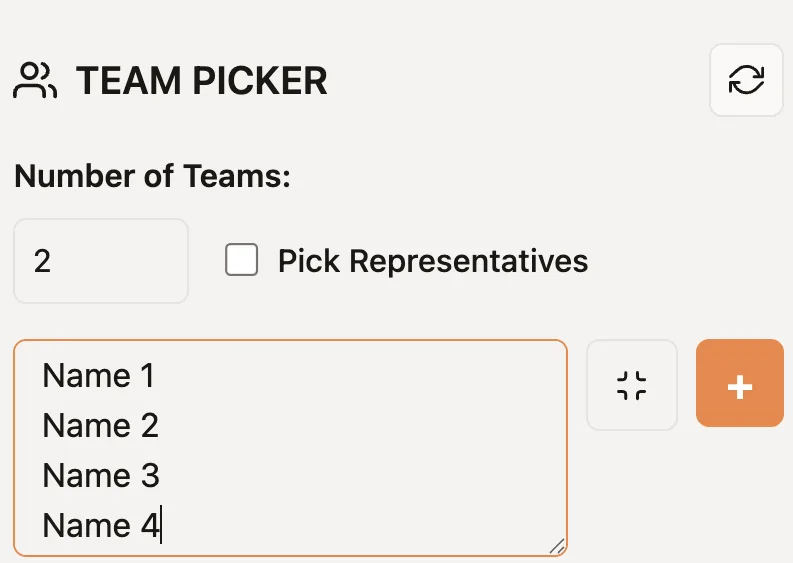
Edit after adding
Once names are in the list, you can drag entries to reorder them using the handles on the left of each name. Click the "X" button to remove individual entries. Use the reset button (circular arrows icon) in the header to clear the entire list.
4. Configuring Team Settings
The Team Picker has two main configuration options:
Number of Teams
Enter a number between 2 and 20 in the "Number of Teams" field. As you change this value, empty team boxes appear on the right side to preview the structure. The Start button becomes disabled if you have fewer participants than teams.
Pick Representatives
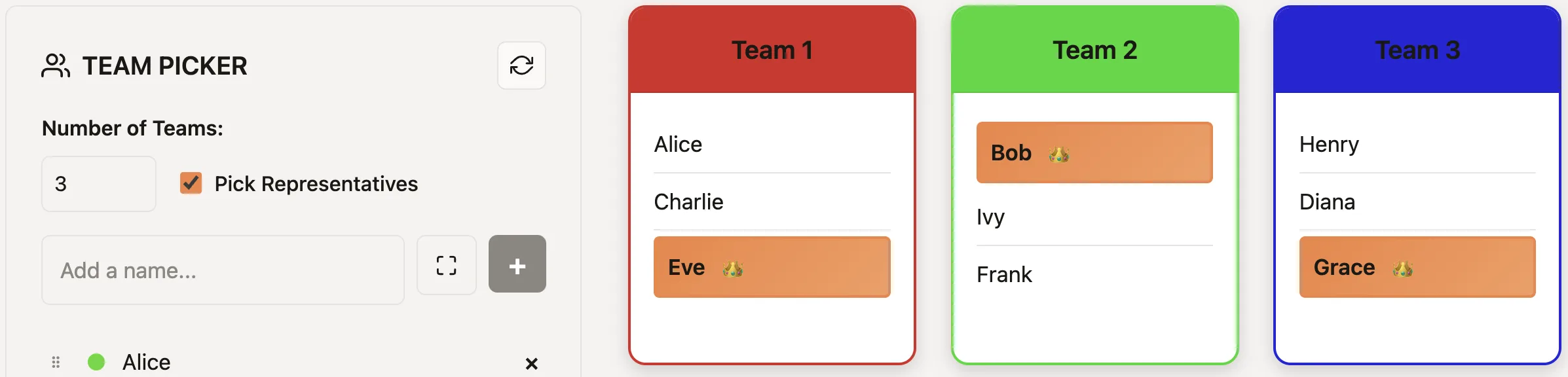
Check this box to have the tool randomly select one representative (captain) from each team after generation. Representatives are highlighted with a gradient background and a crown emoji (👑). This is useful when you need team leaders, spokespeople, or captains.
The following screenshot shows the Team Picker with 3 teams and the Representative feature enabled. The representatives are highlighted with a background color and a crown emoji (👑).
5. Understanding the Generation Algorithm
The Team Picker uses a two-step process to create teams:
Step 1: Random shuffle
Participants are shuffled with Fisher-Yates using Web Crypto when available, with a standard browser random fallback.
Step 2: Round-robin distribution
The shuffled participants are assigned to teams in round-robin order: person 1 goes to Team 1, person 2 to Team 2, person 3 to Team 3, and so on. When we reach the last team, we wrap around to Team 1. This continues until everyone is assigned.
This algorithm guarantees the most balanced possible distribution. With N participants and K teams, teams will have either floor(N/K) or ceil(N/K) members — a difference of at most one person per team.
Animation
When you click Start, the tool shows an animated assignment process. Each name appears in its team box with a 250ms delay, creating a visual reveal that makes the process transparent and engaging for groups watching together.
6. The Representative Feature
When "Pick Representatives" is enabled, the tool performs an additional random selection after teams are formed:
- For each team, one member is randomly chosen as the representative.
- The selection uses the same secure randomness as the shuffle — every team member has an equal chance.
- Representatives are visually highlighted with a gradient background and a crown badge (👑).
This feature is useful for:
- Team captains in sports scrimmages who make game-time decisions.
- Group spokespeople in classroom or workshop settings who present the team's work.
- Point persons in corporate exercises who coordinate with facilitators.
7. Saving and Sharing Configurations
Your Team Picker configuration — including participant names, team count, settings, and generated teams — can be saved and shared via URL.
How it works
After generating teams, your configuration is encoded in the page URL. Copy this URL to save it as a bookmark or share it with others. When someone opens the link, they see the exact same team assignments you created.
Use cases for sharing
- Teachers can generate teams and share the link with students before class.
- Event organizers can distribute team assignments to co-facilitators.
- Coaches can send practice team lists to players.
Note on shared mode
When viewing a shared configuration, editing is disabled to preserve the original team assignments. To make changes, you would need to create a new configuration from scratch.
8. Use Case: Classroom Group Projects
Teachers frequently use the Team Picker for forming student groups in a way that feels fair and avoids the social dynamics of self-selection.
Group project assignments
Enter your class roster, set the number of groups needed for the project, and click Start. Students see their assignments appear one by one, and no one can claim the teacher picked favorites.
Randomized peer review pairs
For peer review or partner work, set the number of teams equal to half your class size. Each "team" of two becomes a working pair. The random assignment prevents cliques from always working together.
Discussion groups
During class discussions, quickly divide students into breakout groups. Enable Representatives to designate a discussion leader or note-taker for each group.
9. Use Case: Sports and Athletics
Coaches and recreational sports organizers use the Team Picker to create fair teams for practices, pickup games, and leagues.
Practice scrimmages
Divide your team into two groups for practice scrimmages. The random assignment mixes players in ways that manual selection might not, creating varied matchups and learning opportunities.
Pickup games
At recreational sports events where players arrive without pre-formed teams, use the Team Picker to create evenly sized random teams. Make manual adjustments when skill balance or safety matters.
Youth league team formation
When forming teams for a season, enter all registered players and divide them evenly. The random assignment avoids accusations of stacking teams and gives every child an equal experience.
10. Use Case: Corporate Training and Workshops
Workshop facilitators and corporate trainers use the Team Picker to create breakout groups that mix departments, experience levels, and perspectives.
Breakout sessions
During workshops, quickly form groups for activities like brainstorming, case study analysis, or skill practice. Random assignment ensures cross-departmental mixing that might not happen organically.
Team-building exercises
For team-building events with games or challenges, use the Team Picker to form teams that break up existing cliques and encourage new connections.
Networking events
At conferences or networking sessions, divide attendees into small discussion groups. Enable Representatives to designate conversation facilitators for each group.
11. Tips for Fair Team Division
Get the most out of the Team Picker with these practical tips:
- Run it live with your group. Screen-share or project the Team Picker during team formation so everyone sees the random process happen. This builds trust in the fairness of assignments.
- Use Representatives for accountability. When teams need a point person, enable the Representative feature rather than asking for volunteers (which favors extroverts) or assigning manually (which can feel arbitrary).
- Accept the results. The whole point of random assignment is removing human bias. If you regenerate teams until you get a "better" result, you undermine the fairness.
- Account for constraints externally. If certain people must be together or apart, adjust your participant list before generating, or make manual swaps after. The tool is designed for simple, unbiased division.
- Save configurations for recurring needs. If you form teams regularly (weekly class activities, recurring training sessions), bookmark generated URLs for reference.
13. Frequently Asked Questions
How does the Team Picker ensure balanced team sizes?
The Team Picker uses a round-robin distribution algorithm. After shuffling all participants randomly, it assigns them one by one to each team in sequence. This guarantees the most balanced possible distribution — teams differ by at most one member.
Is the team assignment truly random?
The tool uses a Fisher-Yates shuffle with Web Crypto when available, then distributes participants round-robin so team sizes differ by at most one. It does not balance teams by skill or other attributes.
What is the Representative feature?
When "Pick Representatives" is enabled, the tool randomly selects one member from each team to be the representative (team captain). Representatives are highlighted with a crown badge (👑) in the results.
Can I customize team names or colors?
Team colors are automatically generated based on the number of teams to ensure visual distinction. Team names follow a simple "Team 1, Team 2..." pattern. For custom naming, you can note the assignments and apply your own team names externally.
Can I keep certain people together or apart?
The Team Picker does not have built-in constraint features to keep specific people together or apart. For such requirements, generate teams randomly and make manual adjustments, or run the tool multiple times with different participant pools.
How many teams can I create?
You can create between 2 and 20 teams. The tool will distribute participants as evenly as possible across all teams.
Can I export or copy the team lists?
You can take a screenshot of the results or manually copy the team member names. The shareable URL also preserves your complete configuration including generated teams.
How does sharing work?
Your configuration (participants, team count, settings, and generated teams) is encoded in the page URL. Copy and share this URL so others can see your exact team assignments.
Does the Team Picker work on mobile devices?
Yes. The Team Picker is fully responsive and works on phones, tablets, and desktop computers. The layout adapts to your screen size.
Is the Team Picker free to use?
Yes. The Team Picker is 100% free with no hidden costs, premium tiers, or usage limits. Use it as often as you like.